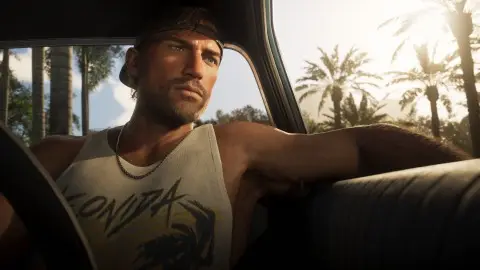
The best HDR setup for GTA 6 is your console's HDR calibration first, then the game's own HDR Calibration screen in Settings, Display. The game's three sliders start at Max Brightness 600, Black Levels 50 and Paper White 50, AllThingsHow reports from the PS5 version (AllThingsHow). The right numbers depend on your TV, so follow the hints on each test image instead of copying someone else's values.
Step 1: calibrate the console#
PS5 and PS5 Pro. Go to Settings, Screen and Video, Video Output. Turn HDR on, then select Adjust HDR and follow the three screens (PlayStation).
Xbox Series X|S. Go to Settings, General, TV and display options and allow HDR10 in Video modes. Then run Calibrate HDR for games, the HDR Game Calibration tool (Xbox Support).
Your TV. Put the HDMI input in Game mode. If your TV has an HDR tone mapping option, try the game with it on and off after calibrating, and keep whichever shows more detail in bright skies.
Step 2: GTA 6's HDR Calibration#
- Pause, open Settings and move to the Display tab.
- Check HDR is On.
- Select HDR Calibration.
- On image 1 of 3, change Max Brightness with the D-pad until the logo is only just visible.
- Press R1 (RB on Xbox) to move to images 2 and 3. Set the other sliders so bright areas look vivid without losing detail and dark areas aren't crushed to black.
- Press Triangle (Y) to hide the menu and judge the whole picture, then Cross (A) to finish. Square (X) puts a slider back to its default.
Button steps are from AllThingsHow's PS5 walkthrough. The Xbox buttons in brackets are the usual equivalents.
| Slider | Default | What it changes | How to set it |
|---|---|---|---|
| Max Brightness | 600 | The brightest highlights, like the sun and neon | Until the logo on image 1 is barely visible |
| Black Levels | 50 | How dark the darkest areas get | Shadows dark, with detail still visible |
| Paper White | 50 | The brightness of everyday scenes and the HUD | Comfortable in a lit room, not glaring |
Should HDR be on or off#
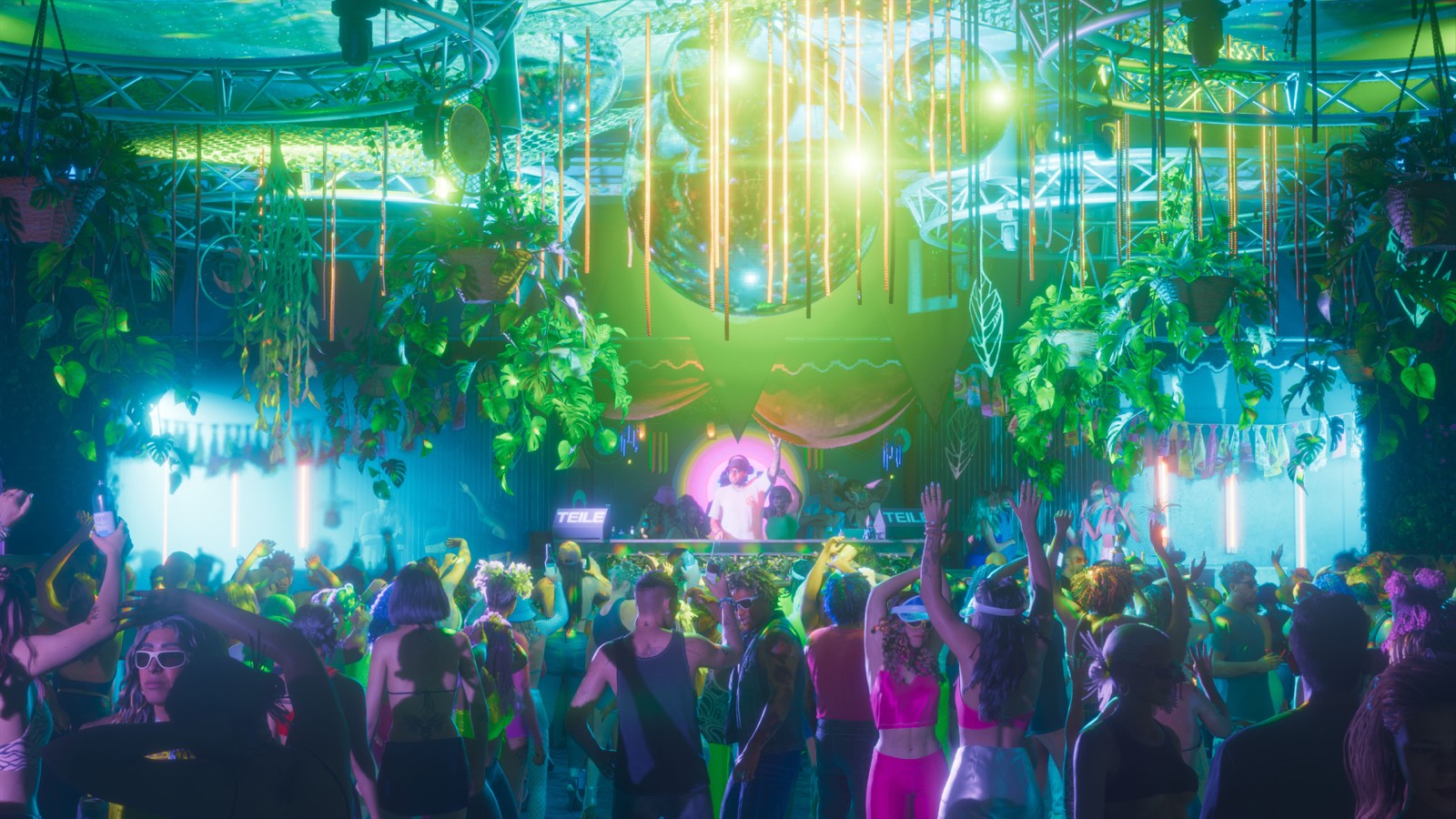
On, if your TV has decent HDR and you've calibrated it. Off, if the picture still looks grey or dim after calibrating, which happens on TVs with weak HDR. Turning it off is the HDR row in the same Display tab.
If the picture looks wrong#
- Washed out or grey. Run the console calibration again, then the in-game one. AllThingsHow suggests redoing it whenever the picture looks too dark or washed out.
- Too dark at night. Raise Paper White a little.
- Too bright overall. The Display tab has a Brightness Reduction toggle, off by default. TechRadar's review describes it as a one-toggle brightness option for accessibility (TechRadar).
- Blurry, not just dark. That's often motion blur, not HDR. See motion blur.
If it still stutters#
HDR doesn't change the frame rate. If the picture is fine but the motion isn't, see GTA 6 FPS boost and stuttering and frame drops. Every other setting is in GTA 6 best settings.
FAQ#
What are the best HDR settings for GTA 6?
Calibrate the console first, then run GTA 6's HDR Calibration and follow each test image. The defaults are Max Brightness 600, Black Levels 50 and Paper White 50, and the best values depend on your TV.
How do you calibrate HDR in GTA 6 on PS5?
Pause, go to Settings, Display, HDR Calibration. Set Max Brightness until the logo on the first image is barely visible, press R1 for the next images, then press Cross to finish.
What should max brightness be in GTA 6?
Whatever makes the logo on the first calibration image barely visible on your TV. It starts at 600. A brighter TV usually ends up higher than a dimmer one.
Should GTA 6 HDR be on or off?
On if your TV has good HDR and you've calibrated it. Off if it still looks washed out after calibrating.
Where is HDR calibration on Xbox?
In Settings, General, TV and display options, as Calibrate HDR for games. Run it before GTA 6's own calibration.